
System requirements
macOS 15 or later and your own Google Gemini API key. Photo Mechanic is optional for wire stationery and code replacements.
Good news
IPTC/XMP metadata write is built in. No separate ExifTool install or Homebrew setup required.
Connect Google Gemini
Bring your own AI key
Caption Caddie uses your own Google Gemini API key for cloud jersey detection and captioning. Create the key in Google AI Studio, paste it once in Settings (⌘,), and pay Google directly for usage.
-
Create the key
Make a Gemini API key in Google AI Studio.
-
Paste it once
Open Settings (⌘,) in Caption Caddie and paste the key into the Gemini field.
-
Track usage
Check Settings → Stats for session, month, and lifetime usage with exact and estimated cost.
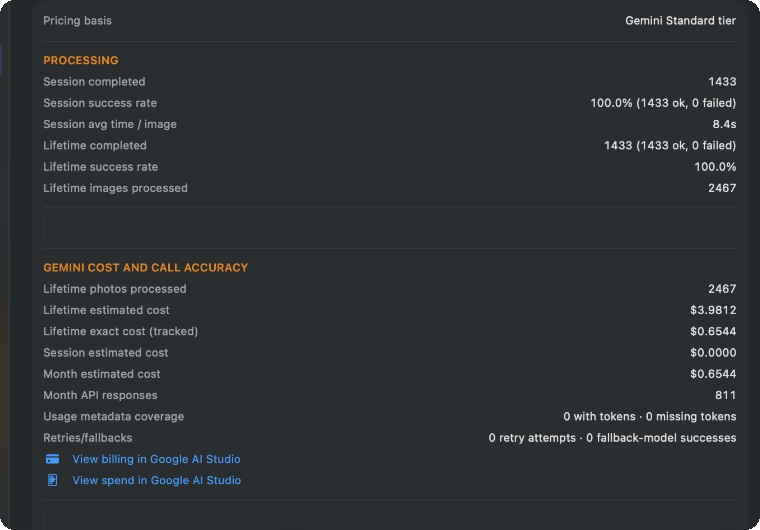
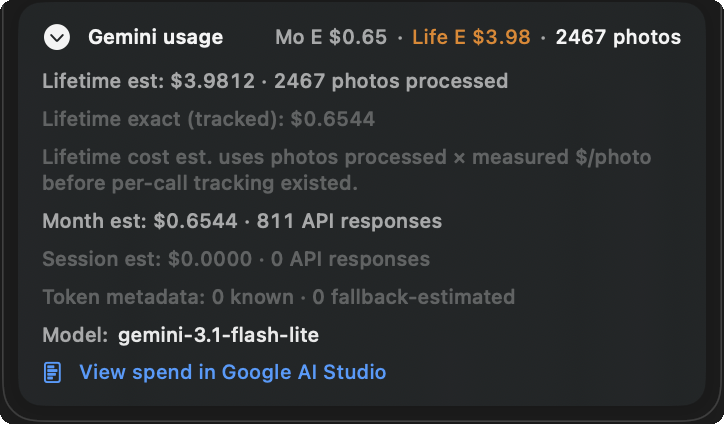
Bring-your-own-key pricing keeps the app affordable. AI usage stays on your Google account instead of being bundled into a subscription. See our privacy policy for how images are processed.
Session workflow tips
Matchups and Teams
Create a Matchup or Event, attach rosters, set jersey colors, and make it active before you open Session.
Ingest
Bring photos in via drag-and-drop, watch folder, or File → Import. Frames land in Incoming Photos for the Session.
Cull → Caption / Edit
Rate selects in Cull. Caption roster-aware AI frames and Approve (⌘↩). Quick Edit when a light finish helps — Caption and Edit are flexible.
Delivery
Export Selected images and send via FTP or FTPES. Track Exported and Sent inside Caption Caddie — you do not have to leave the app to transmit.
Still using Photo Mechanic? Import code replacements and merge wire XMP stationery as usual — see the Photo Mechanic workflow guide.